Before you make your Burning Bridges AI video
Answers on photos, output, credits and reviewing your finished scene.
What photos do I need for Burning Bridges AI?
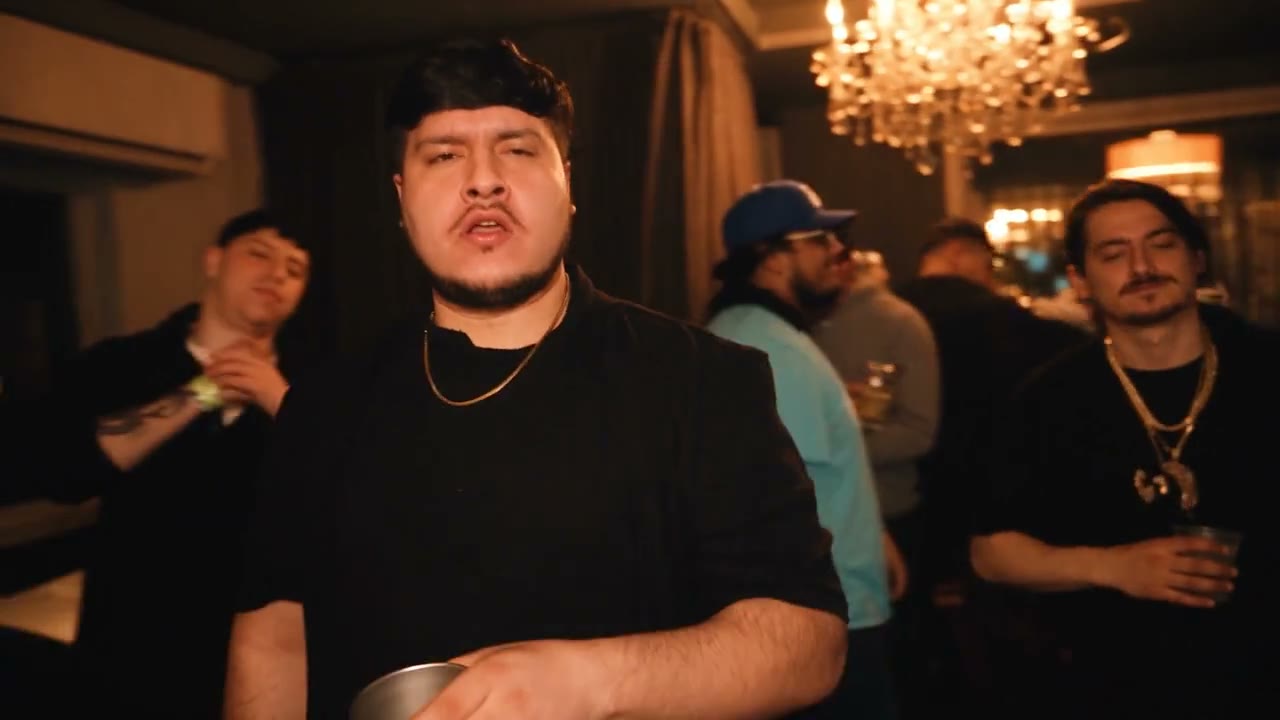
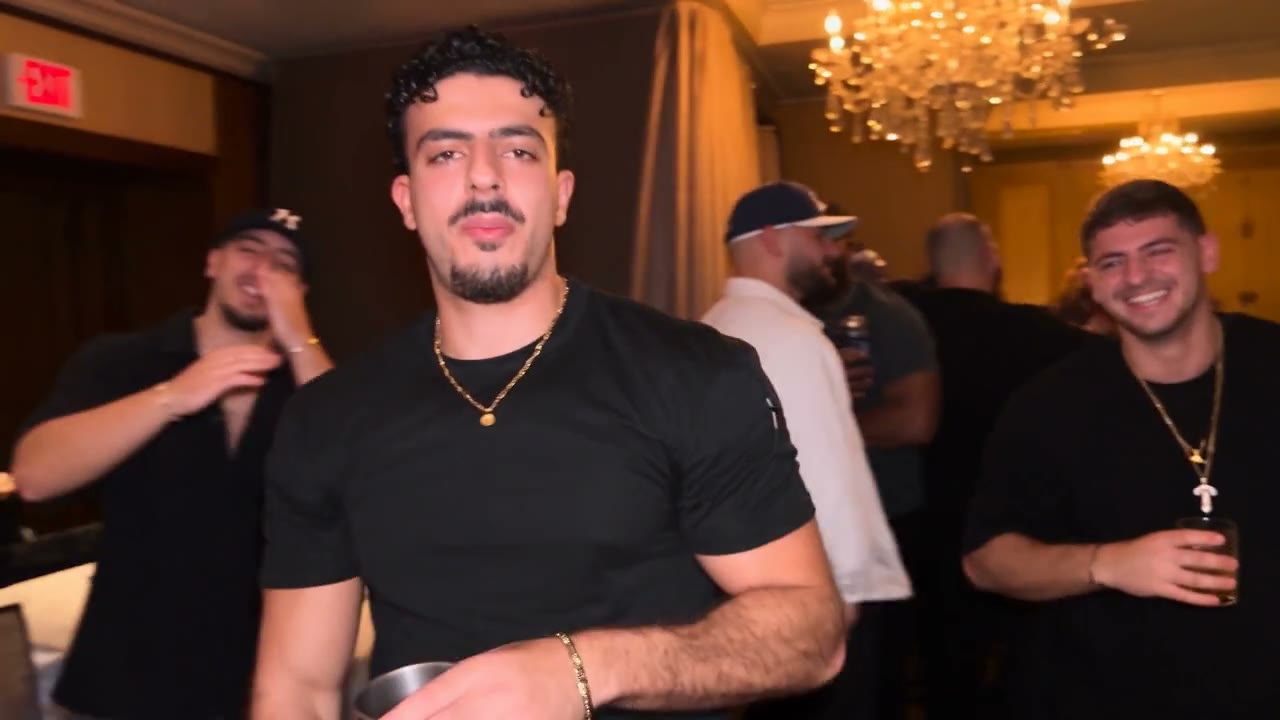
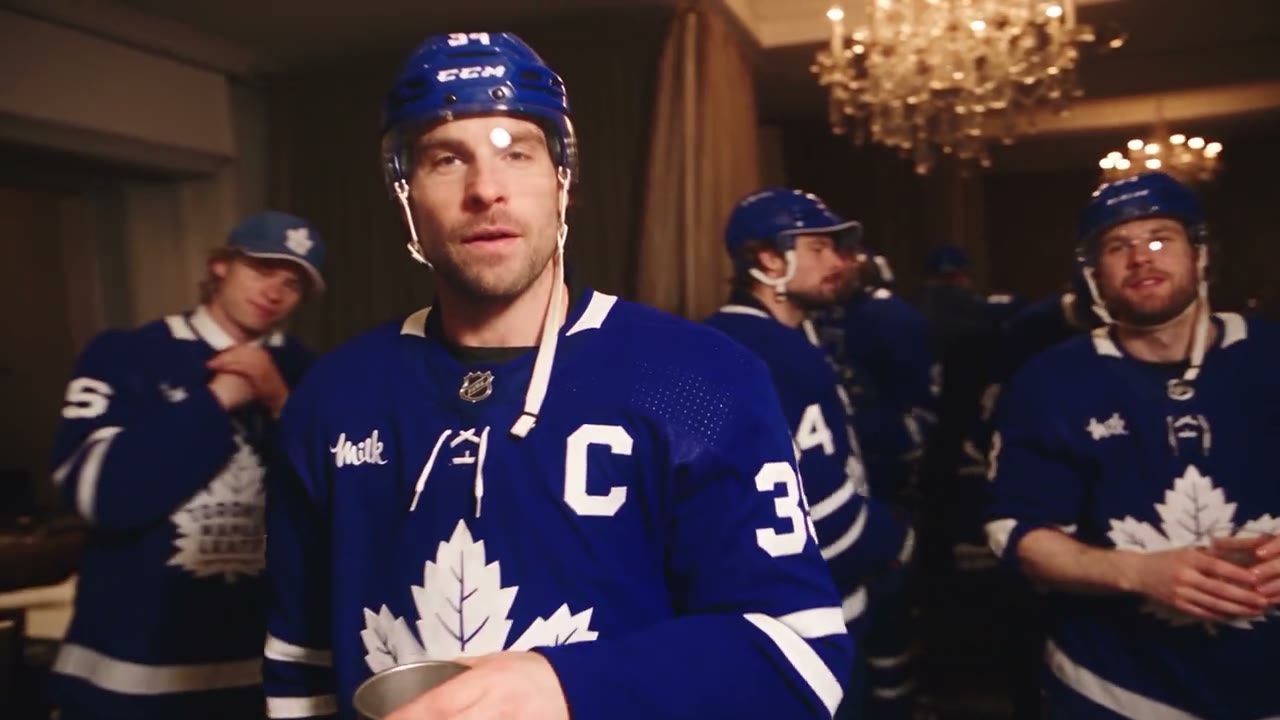
One lead photo is enough to start. Background references are optional, with room for 5 more images — 6 in total. Use one person per background photo. You can arrange the cast before submitting; generation only starts when you press Generate with an account and enough credits. The source performance is already loaded, so there is no reference video to upload.
Can Burning Bridges AI work with just my photo?
Yes. With the background group empty, the edit changes the lead and keeps the original supporting people — the simplest way to use Burning Bridges AI. A full cast is not required, and your lead photo is not copied onto the other people in the room.
How do I replace someone in my Burning Bridges AI cast?
In the upload panel, choose Replace on the photo you want to change; it keeps its position in the cast. To remove the lead entirely, delete any background photos first. Supporting photos can be removed individually without reordering the rest — review the sequence before submitting.
How does Burning Bridges AI pick clothes and accessories?
It uses what is visible in your reference photo; there is no separate wardrobe picker for this performance. Include the outfit you want and avoid a face-only crop if clothing matters. Fine patterns, small logos and jewelry may be reinterpreted as the person moves.
Can I change the length, shape or soundtrack?
Burning Bridges AI uses the supplied landscape performance of about 29 seconds. You get resolution settings, not duration, aspect-ratio or music pickers, and the original reference audio is attached through the result workflow. For a different scene or a prompt-based video, open the AI Video generator.
Does preparing a Burning Bridges AI video cost credits?
Previewing examples and arranging photos is free; submitting a Burning Bridges AI generation uses credits. Check the estimate on the button after choosing settings and make sure your balance covers it. Do not assume the signup bonus or a plan example matches this exact job.
What should I check in a Burning Bridges AI result?
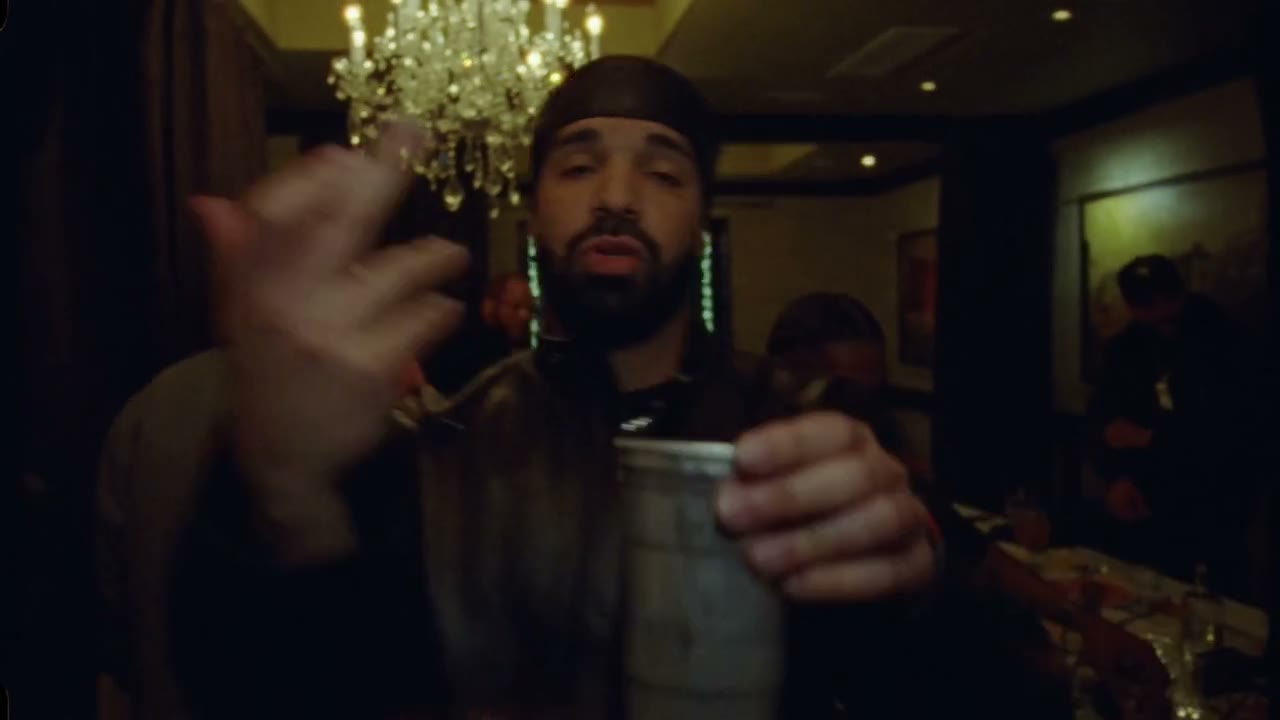
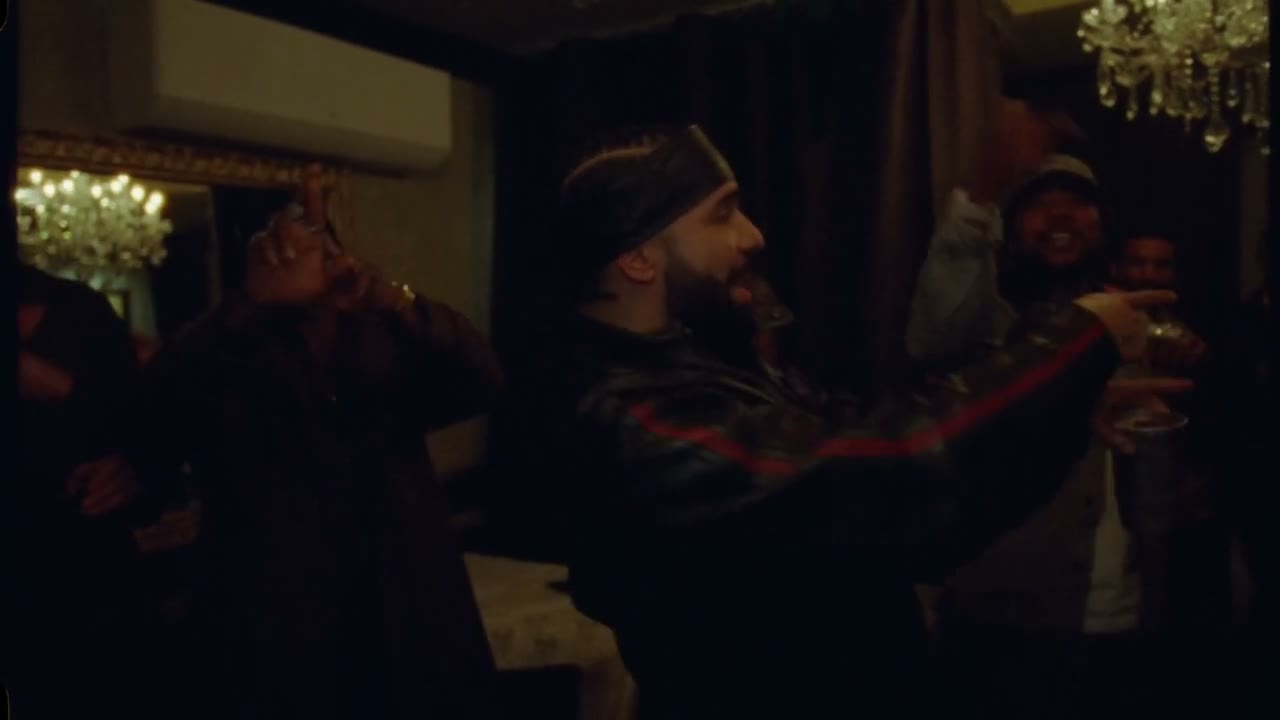
Watch the whole clip — moving hands, the cup crossing the body, close-ups and overlapping people in the background. Confirm the lead stays recognizable and supporting identities stay distinct. AI editing can alter details or blend people in those moments; Burning Bridges AI does not promise an exact likeness, perfect lip movement or a fixed success rate.
Can I share a Burning Bridges AI video of someone else?
Only use photos you are allowed to transform, and get permission from the person shown. Check your rights to the reference footage and soundtrack before publishing. Community examples illustrate creative directions; they do not grant rights to characters, likenesses or audio. See the Use Policy for site rules.
How do the image and video tools fit in?
AI Image helps you create or refine a portrait before casting it here. AI Video does a different job: generating a scene from your own idea and references. Come back to the Burning Bridges AI homepage whenever you want this loaded performance. All tools share your account and credit balance.
Where can I download my Burning Bridges AI video?
Open My creations (video history) and use the download control on your finished Burning Bridges AI video. Preview picture and sound first. If the visuals are done but the soundtrack is missing, use the audio retry on that result — no new visual generation needed.