Burning Bridges

STORM II AI Video Generator

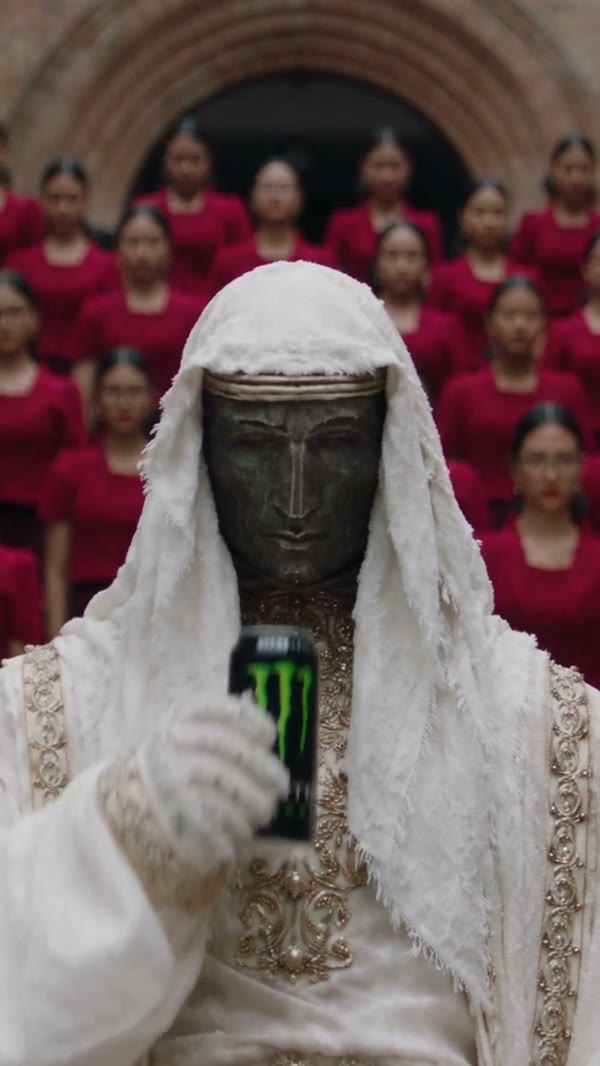
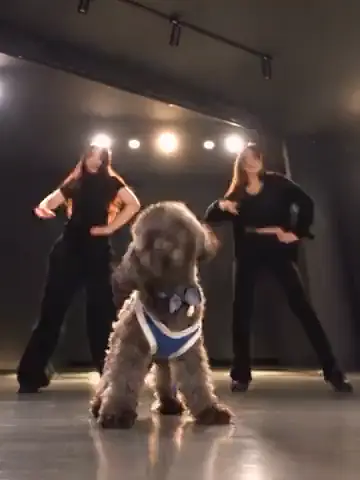
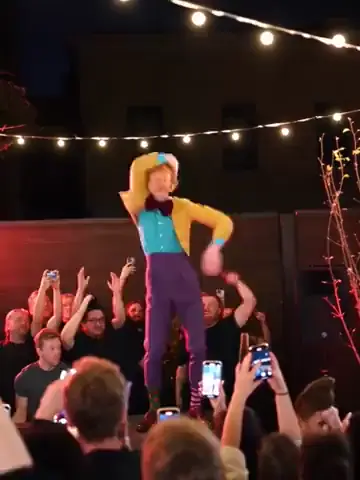
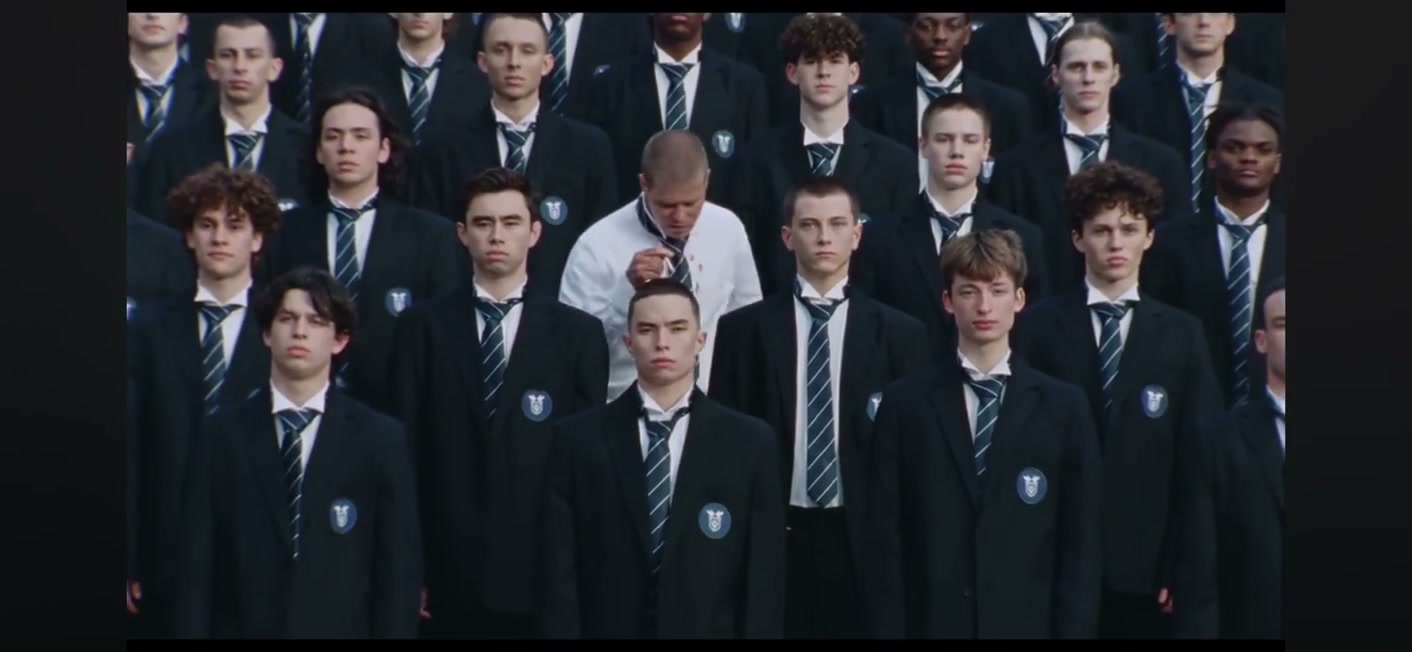
Make a STORM II AI crowd performance from two reference photos. Pick the lead and the surrounding cast, and follow the loaded choreography and original sound.

Create a video
STORM II28s · Original soundtrack
@Image 1
@Image 2

生成即表示你有权使用这些照片,并接受使用政策。

Open library作品库

Two looks shape your STORM II AI cast

STORM II AI combines two visual references in one coordinated crowd performance. Your first image defines the lead at the front; your second sets the look of the performers around them. The loaded clip carries the formation, camera movement and timing, so all you think about is who should appear. It is a focused recasting tool — the crowd reference does not create a separate upload for every person in frame. Preview the scene first to see how the two inputs will be used.

Start a STORM II AI performance

  1. 01

    Choose your STORM II AI lead

    Add a clear photo of the person who should take the front role, with the face, hair and intended outfit visible. The first slot is reserved for the lead, so don't put the crowd reference there.

  2. 02

    Set the look of the surrounding cast

    Add the second appearance reference, then check Settings and the estimate. STORM II AI uses this image for the surrounding performers while the source supplies their placement and action. The prepared prompt already separates the two roles.

  3. 03

    Review the whole group performance

    Generate once both images are in. Watch your STORM II AI result in My creations, checking the front character and the people around them through the full sequence. Listen to the original sound, then download the take you want.

What matters in a STORM II AI scene

A distinct STORM II AI lead

STORM II AI depends on the lead staying identifiable as the group moves. Photo 1 is dedicated to that character's look — face, hair, build and clothing. Choose a reference where the person stands out clearly from their own background.

Your lead doesn't need to copy the original pose; the performance supplies the action. For STORM II AI, clarity and a complete look matter more than acting out the choreography. A sharply shot upper body beats a dark frame where face and outfit melt into the surroundings.
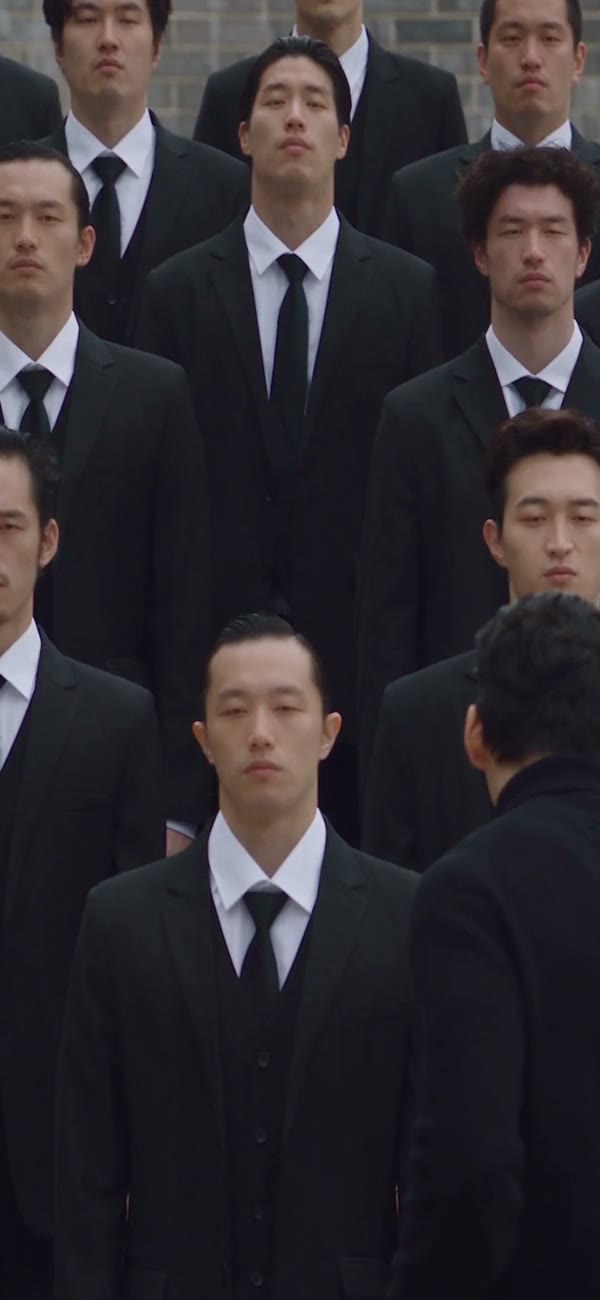
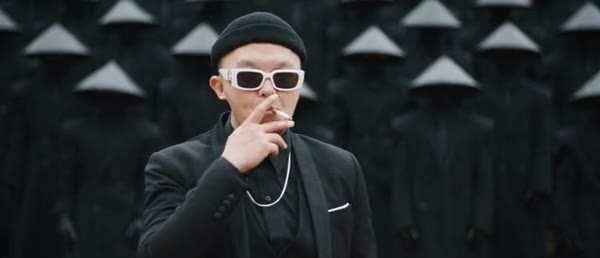
How the STORM II AI crowd reference works

Photo 2 sets the appearance direction for the surrounding cast. STORM II AI has no roster where every background position gets its own image — the second input steers the look of the ensemble while the footage supplies its size, placement and synchronized movement.

That matters if you hope to include several friends: STORM II AI cannot promise that each face in a group photo lands on a specific performer. If individual identity matters, pick a workflow with explicit separate roles, like Gas Station Dance AI, and use its slots as directed.

A distinct STORM II AI lead

Keep the formation that makes it work

The group arrangement is the heart of the effect. STORM II AI is told to follow the source spacing, depth and relative positions rather than inventing a new crowd, which keeps the lead connected to the surrounding performance as camera and bodies move.

Crowds are also hard to generate. STORM II AI can produce duplicated features, merged bodies or changes near overlaps, so review the edges of the group and the area around the lead. A strong central face can't make up for broken supporting figures, especially on a big screen.

Let the choreography carry the momentum

STORM II AI borrows the source poses, direction and timing. You bring appearance references instead of a newly recorded dance, so you can explore a different cast without organizing a synchronized shoot, while the edit keeps the group inside the same structure.

Asking for a new routine in the prompt works against that goal. Use STORM II AI when this choreography is the reason you're here. For a fresh sequence or a different story, move to the AI Video Generator rather than expecting this fixed reference to act as an open-ended director.

Keep the formation that makes it work

Clothing can unite or split the cast

Your photos carry more than faces. In STORM II AI the lead's outfit can create a clear focal point while the second reference suggests a consistent look for the group. Put the clothes you want in the input images instead of hoping a costume is inferred from a close-up.

Try a contrast between a standout lead and a uniform ensemble, or two references with a related style. STORM II AI still interprets details in motion — small logos, jewelry, textures and hidden garments can change, so keep expectations tied to how large and clear the visible details are.

The original STORM II AI soundtrack

STORM II AI keeps the original sound from the loaded performance on the finished edit, preserving the familiar rhythm that makes the group action read, with no separate track upload. The source also sets the wide frame and approximate length.

It does not record a new vocal for your cast, and keeping the reference soundtrack does not grant publishing rights. Watch the full STORM II AI output with sound before sharing, and check that the opening and ending feel coherent as well as the movement in between.

Clothing can unite or split the cast

A cast experiment you can compare

STORM II AI is handy for a fictional ensemble concept, a personal remix or comparing character styling. Start with two images you're allowed to use, and remember you're exploring how those looks read in this scene — not documenting a real group performance.

For a second STORM II AI attempt, change the input tied to the problem: if the lead is unclear, improve Photo 1; if the crowd style is off, rethink Photo 2. Keeping other settings stable makes results easier to compare, though generative outputs can vary even with similar inputs.

STORM II AI output settings

The video-editing model and default prompt come prepared. STORM II AI shows the available resolutions in Settings and an estimate for the request. Length follows the loaded reference; there is no duration control for extending the choreography.

You can turn on a custom prompt for a specific tweak, but keep Photo 1 and Photo 2 distinct. A first STORM II AI try is easiest to judge with the prepared instructions — review it, pick one concrete improvement, then decide whether a new image or setting is worth another generation.

A cast experiment you can compare

STORM II AI: your questions answered

How many photos does STORM II AI need?

Two: one for the lead and one for the look of the surrounding cast, each with its own role in the edit. A single collage can't replace the two uploads, and extra pictures don't create more individual crowd roles.

What does the second STORM II AI image control?

The appearance of the surrounding performers. The source video still decides their arrangement and choreography. It is not one-photo-per-person casting, so a group picture can't guarantee a particular friend in any given spot.

Can STORM II AI use fictional characters?

Yes, if you have permission to edit the images. Pick references with readable faces, bodies and clothing. Very stylized anatomy can make the source moves harder to follow, so judge the actual result.

Will STORM II AI keep every background person perfect?

The instructions aim to keep the formation and consistent looks, but nothing is guaranteed. Overlapping bodies and synchronized motion can mix identities, duplicate people or distort limbs — review supporting figures throughout, including at the frame edges.

Does STORM II AI include the original sound?

Yes, the finished video uses the sound from the loaded reference — no extra track needed. Check permissions before publishing; being able to create a clip doesn't grant rights to the source music or footage.

How long is a STORM II AI video?

About 28 seconds in a wide frame, following the reference. There is no duration picker or way to add choreography beyond the source. Check the finished file for continuity from start to end.

Do I need to write a STORM II AI prompt?

No. The prepared prompt already defines the lead, crowd and movement to keep. If you turn on a custom prompt in Settings, keep both image roles intact and make one focused request that fits the existing performance.

Why does photo order matter in STORM II AI?

Photo 1 is the front character and Photo 2 is the crowd look. Swapping them swaps which identity goes where. Check the labels before generating, especially if both images have similar colors or several people.

How are STORM II AI credits shown?

The Generate button shows the estimate for your current request and settings. You need an account with enough credits. Uploading photos and watching the reference are just preparation — they don't submit a paid generation.

Can I go back to a finished STORM II AI result?

Yes — open My creations or your video history to view and download saved results. If a task is still running, follow its status there instead of submitting duplicates.

A new role in every scene

Choose your next AI trend

From solo performances to a full dance cast, find the scene for your next photo.

Build your STORM II AI cast

Pick the lead, set the surrounding look and bring both into one coordinated performance. Start with two clear references and check your settings before generating.

Try STORM II AI