Burning Bridges

AI Image Generator

Create character portraits, product visuals and new scenes with an AI image generator. Start from a prompt or edit a reference photo, then keep the versions you want.

Model
1K · 2K · 4K

Describe the subject, style, composition and lighting for your image.

0 / 12,000

Estimated credits: 6

Updates with your model, settings and references.
Open libraryLibrary

Creative examples

Explore portraits, products, and visual worlds

Compare the character, product, editorial and atmosphere examples to decide what your AI image needs to say. Notice subject scale, separation from the background and use of light — the examples show directions; your prompt, reference and model decide the result.

Create a portrait with a clear direction
Character

Character

Create a portrait with a clear direction

Describe the character, pose, clothing, setting and light. If the portrait will become a Burning Bridges lead photo, make the subject and outfit easy to see — the performance uses the uploaded look as its reference, so a cropped detail or unclear face leaves the next tool guessing.

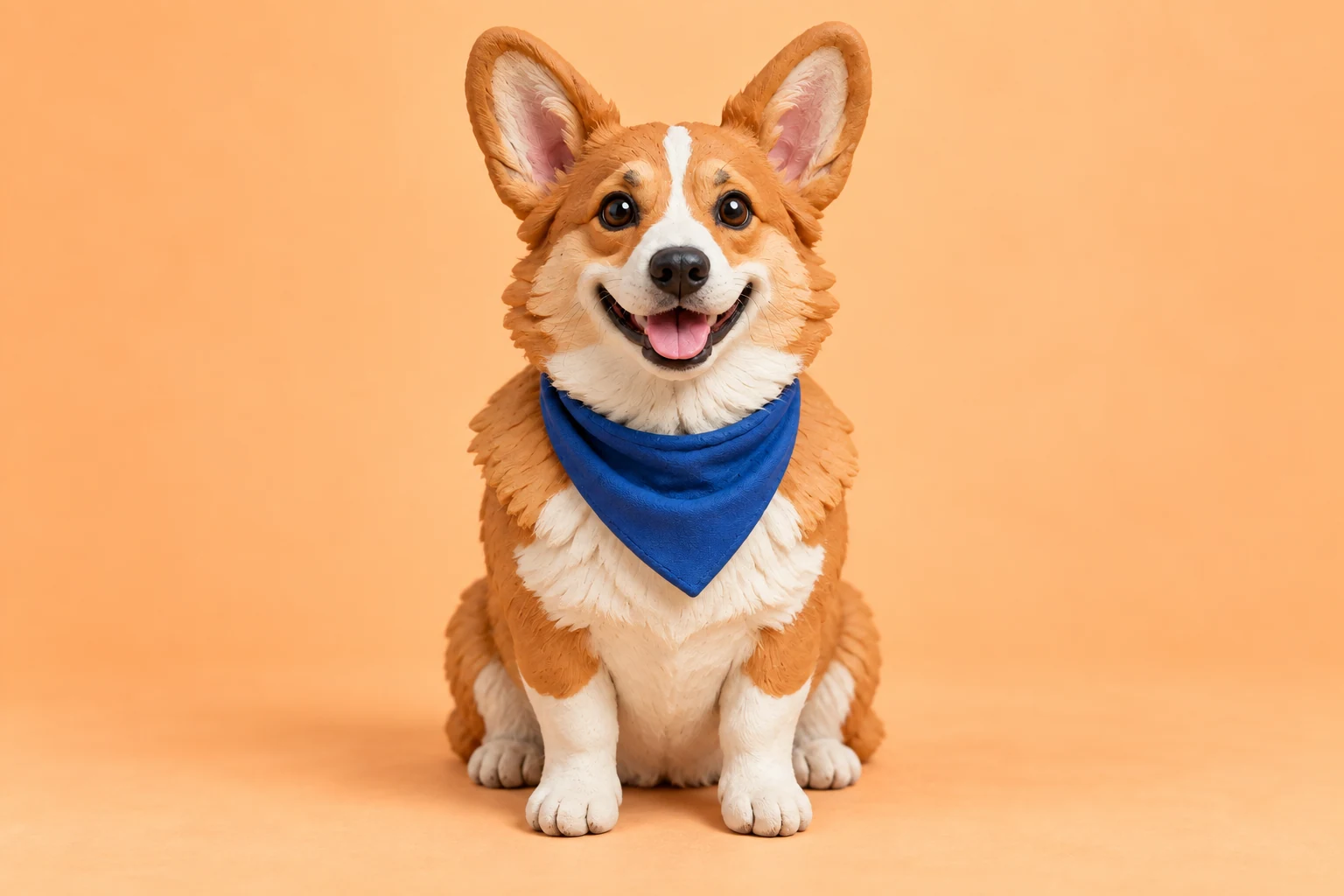
The clay character example uses a clean silhouette and one small accessory to stay readable. For a character AI image, decide which traits define the look and which can vary, and check the full pose as well as the face before reusing the still.

Create an AI image ↗
Make a targeted reference edit
Product

Product

Make a targeted reference edit

Add a reference in a supported image mode and name the specific change — a new backdrop, warmer light, a different outfit or composition — along with the details to keep. Compare the result with your source; a targeted instruction can still touch nearby details.

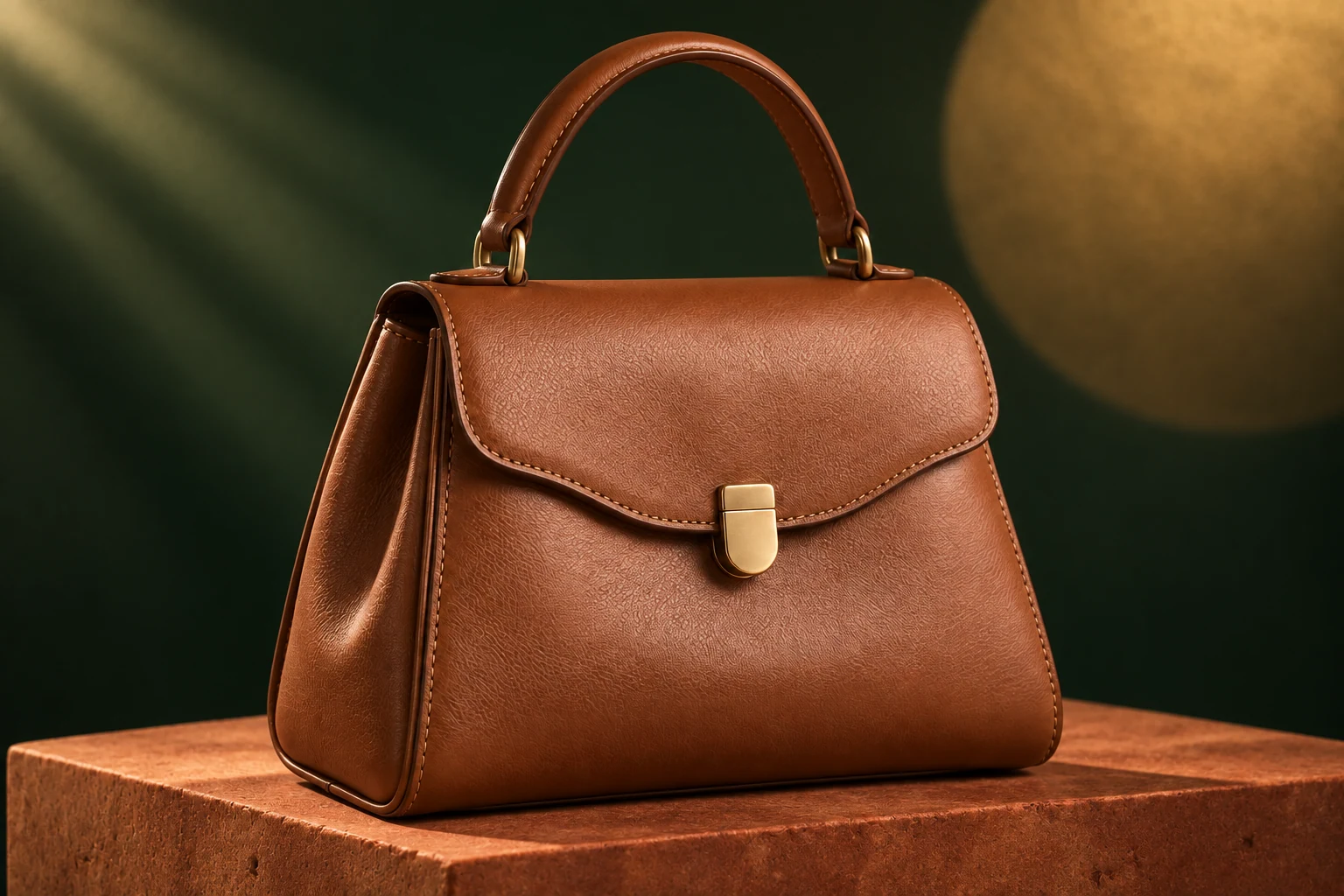
The handbag example separates a warm product color from a darker studio background. A similar brief can set the product position, surface and background tone without dictating every pixel. Check the strap, stitching and silhouette in the AI image against your reference.

Create an AI image ↗
Set the composition before polishing details
Editorial

Editorial

Set the composition before polishing details

Pick an aspect ratio for the intended use, then describe subject placement and surrounding space — a close portrait and a wide product scene need different framing. Check the model’s size and count options and the estimate before requesting larger images or extra variations.

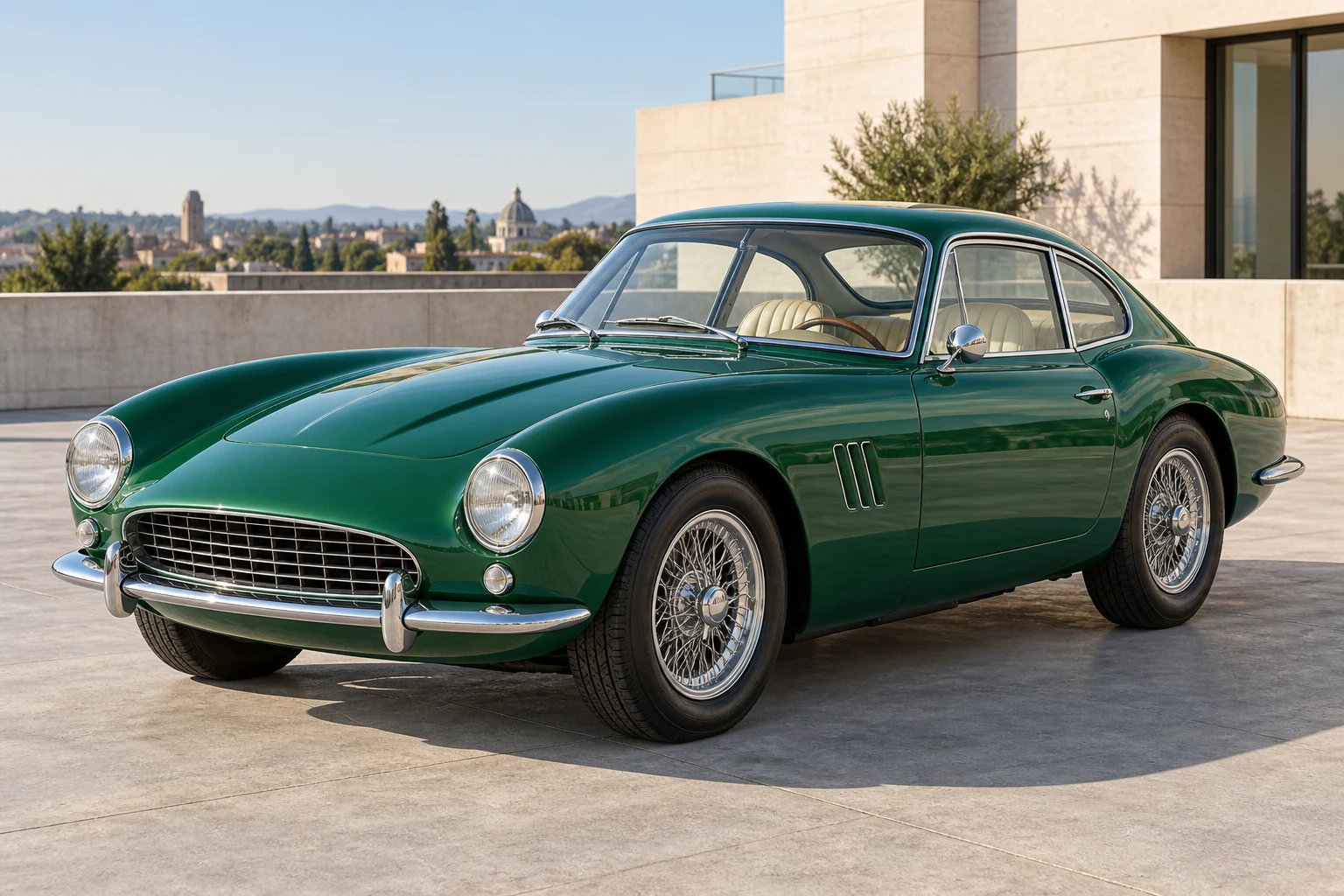
The green coupe example frames a glossy subject in a simple architectural setting. For your AI image, name the surface material and the light direction that should shape it, then inspect reflections, wheels and edges before calling a concept finished.

Create an AI image ↗
Inspect edges, text, and fine detail
Atmosphere

Atmosphere

Inspect edges, text, and fine detail

Review the image at the size you’ll use it. Check eyes, hands, hair edges, repeated patterns, product shapes and any lettering — read text letter by letter. Save a good version before editing further so you have something to compare against.

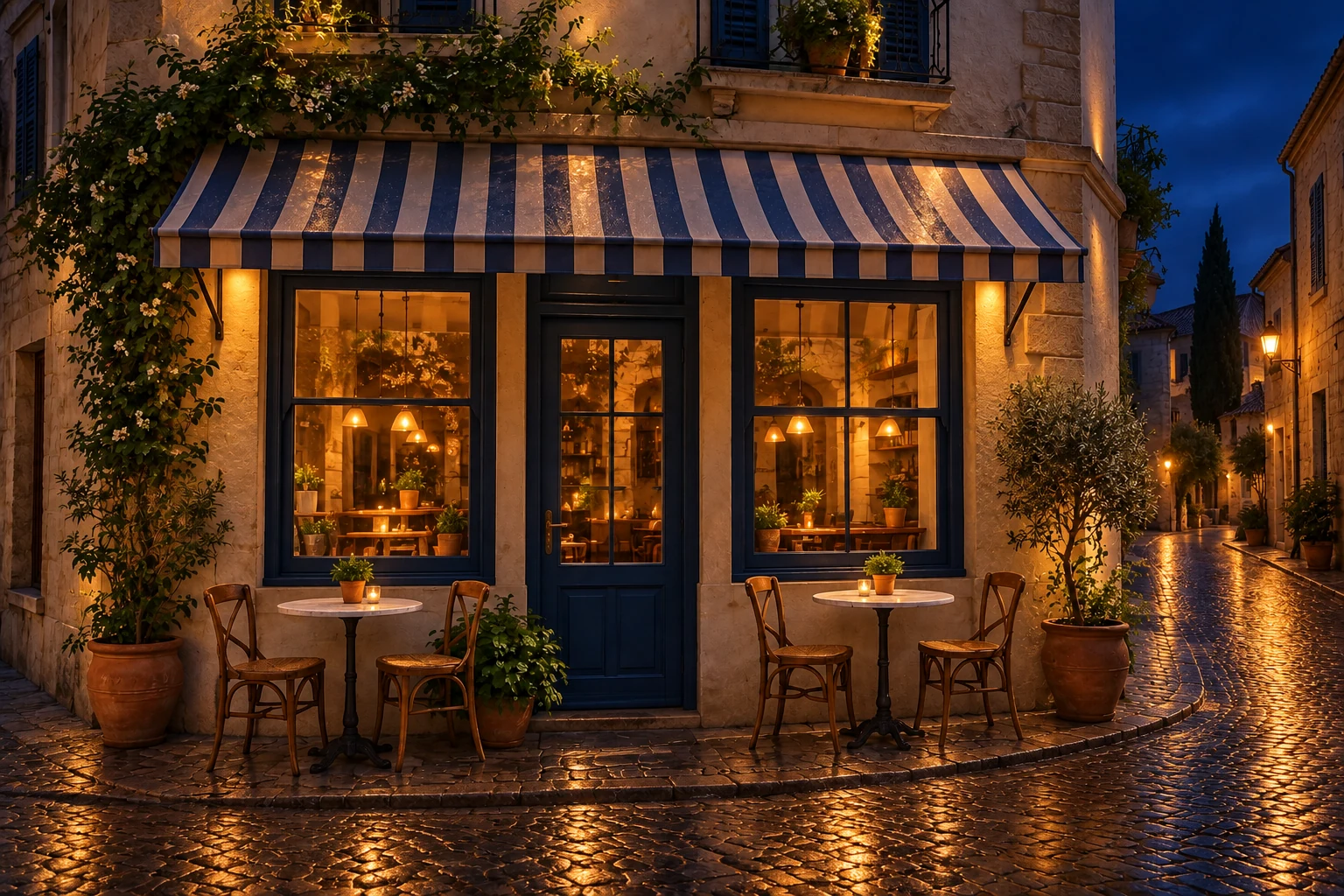
The night cafe example pairs warm windows with a cool, wet street to build atmosphere. Describe how the main light sources relate to the surrounding surfaces, and check signs, window patterns and reflections, especially for large-format use.

Create an AI image ↗

How it works

Create or edit an AI image in four steps

Describe your image or the edit you want, add a reference where useful and choose the output settings. Inspect the result before downloading or turning it into a video.

  1. 01

    Pick generation or reference editing

    Choose an image model and input mode. Start from text for a new composition, or upload a photo when the request should build on an existing subject. The AI Image studio shows the reference slots and output options for that choice.

  2. 02

    Describe the picture you need

    Specify subject, framing, background and lighting. For a reference edit, say what should change and what must stay — replacing a studio backdrop while keeping the handbag is a different task from inventing a new product.

  3. 03

    Review the image settings

    Choose the size, aspect ratio and number of outputs your model supports, then review the estimate. Sign in and generate with your credits — writing a prompt or uploading a reference never starts a paid job.

  4. 04

    Inspect and keep your still

    Open the finished AI image at the size you plan to use and check faces, hands, product edges and lettering. Download it, keep editing from the result, or send it to AI Video with the image-to-video action.

What you control

Shape the appearance of your still

Use this page to create a still or continue from a finished image. Send a still into motion with the image-to-video action, which opens AI Video on this site.

A new composition or a focused image edit

Use a fresh prompt to explore the whole picture, or start from a reference when particular details must carry through. The AI Image workspace supports both through the input modes its models offer.

Create a still with a clear visual purpose

Develop a portrait, product concept or setting from a written brief.

A new AI image can define a character’s look, set a scene’s mood or explore how a product might be shown. Pick one purpose before writing, describe the focal subject and placement first, then add the materials, background and lighting that serve that purpose.

Frame for the intended use
A portrait reference needs a readable face and outfit; a background may need open space around its main feature. Choose an aspect ratio that suits the destination and keep key details away from edges a later crop could remove.

Compare variations
Keep a promising still before trying another direction. Compare composition, color and subject accuracy separately so you know what to change — an attractive alternative may solve a different problem than the one you started with.

Refine an existing image for the next step

Ask for one specific change while naming the details to keep.

Reference editing helps when the subject is right but the presentation isn’t. Request a new backdrop, a different atmosphere or a clothing direction while naming what must remain. The model can reinterpret other details too, so compare the edit with your upload before keeping it.

Review beyond the requested change
Inspect the boundary between subject and new surroundings — hair, straps, hands and shadows — and make sure a background edit didn’t alter a product shape or facial detail that matters.

Continue into another tool
Use image-to-video on a finished image when you want motion from that composition. For the Burning Bridges performance, download a suitable portrait and upload it as the lead photo on the homepage. Each request has its own estimate.

Limits

Prepare an AI image for its next use

A portrait, a product visual and a scene background each succeed differently. Decide where the still is going before choosing its framing, and judge the output against that purpose.

Keep the important details visible

For a character portrait, leave room to read face, hair and outfit; for a product, show the silhouette and surfaces that set it apart. Tiny accessories or markings can be reinterpreted, so don’t count on them staying exact.

Treat lettering as a review task

Inspect labels, signs and logos when they matter. Read every visible word and check repeated patterns and edges — a convincing thumbnail can still hide spelling errors or altered product details.

Use images you may transform

Bring photos and artwork you have permission to edit, and check rights before distributing an AI image. A portrait can be prepared for the Burning Bridges performance, and the image-to-video action opens the general video studio.

Credits

Plan credits for your AI images

Check the estimate for the image size and number of outputs you’ve selected. Each new variation or further edit is a separate generation, so plan for those attempts and compare included credits before choosing a plan or one-time pack.

Cancel anytime

Basic

$0

Try before you subscribe

  • 18 one-time signup credits
  • Generation history included
  • Watermarked previews and downloads
  • Up to 3 images or 1 video
  • Watermark-free downloads require payment

Prices in USD; taxes and total shown at checkout. Annual plans are billed in full upfront; the monthly price shown is an average. Subscriptions renew automatically; cancel in Billing settings. Subscription credits expire each period; one-time credits never expire. Refund requests: within 72 hours. Eligible refunds deduct used purchased credits and, where permitted, actual non-returned processing fees. Processing fees are capped at 6% of the original purchase amount, excluding separately charged taxes. Terms · Refund Policy.

Questions

AI image questions before you start

Reference editing, output choices and using a finished still in your next creation.

Can I create an image without a reference photo?

Yes — choose a model and input mode that support text prompts and describe the subject, setting, composition and style. To change an image you already have, switch to a supported reference mode and explain the edit. Controls depend on the model, so review the workspace first.

How do I keep part of a reference while changing another part?

Say what should stay recognizable and name the change separately — for example, keep the subject and pose but change the background. Compare the result with the original; a reference and precise prompt guide the edit but can’t guarantee pixel-perfect preservation.

Can I use the image in Burning Bridges or another video?

Yes. Download a portrait and upload it as the lead photo on the Burning Bridges homepage, or send an image result to AI Video with the image-to-video action. Each step is a separate generation with its own estimate, and you should only use material you may transform.

What should I check before downloading?

Check the composition first, then zoom into what matters for your use: faces, hands, product edges, patterns and lettering. Generated text and small shapes can look right at a glance yet contain mistakes. Keep a good version before editing again, and review the estimate before each generation.

On this site

Build the still your next idea needs

Use the AI Image studio for a character portrait, product concept or reference edit. Decide what the picture should say, set its framing and review the estimate — then download it or carry it into a video workflow.